⌘⇧V
Your history. One shortcut.
A full-width shelf slides up from the bottom of your screen. Choose a clip to copy it and return to your previous app, then press ⌘V there to paste. No Accessibility permission needed.
Your clipboard has a short memory. Give it a better one.
Keep it on your Mac. Take it on your iPhone. Make it work with Shortcuts.
One little shelf. Three ways to find your flow.
Make room for
the good stuff.
Clipboard / No matchesLet’s try another search.Try a different word or filter to find what you need.
INTERACTIVE PREVIEW Try the filters, search, and appearance switch. This demo never reads your clipboard.
Send a clip to the mock note above. No clipboard access. No real paste.
Built for the moments between apps.
No new habits. Just a better clipboard.
A full-width shelf slides up from the bottom of your screen. Choose a clip to copy it and return to your previous app, then press ⌘V there to paste. No Accessibility permission needed.
Search by content or source app. Filter text, links, images, and files; pin favorites or group reusable clips into named collections.
Clipper preserves available RTF formatting for rich paste, alongside plain text. Choose your history length or keep it unlimited. Pinned items and items in collections never expire, and light or dark fits your workspace.
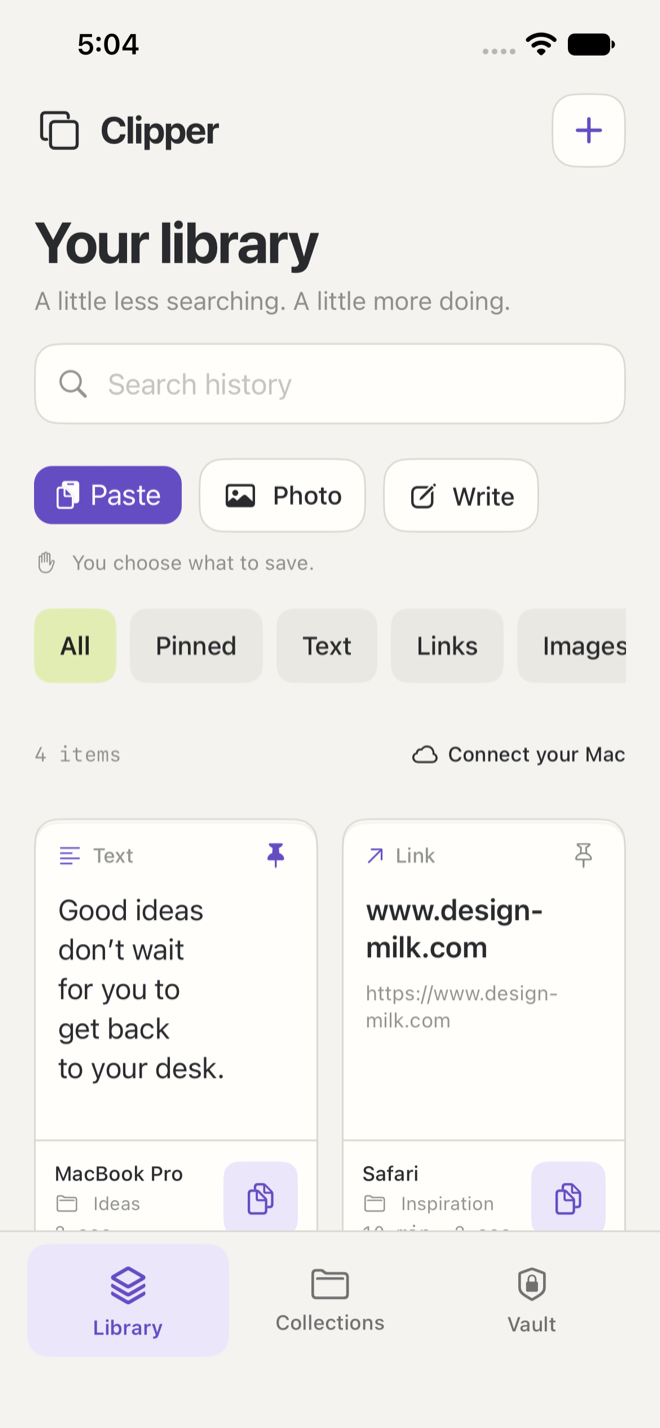
An iOS app with a Mac state of mind. Your snippets, links, images, and collections—right there on iPhone and iPad. Synced with your Mac, encrypted with your key.
Send text, links, or images from Safari, Notes, Photos, and other apps straight to Clipper. Preview, pick a collection, save. That’s the Share extension.
Connect to your Mac’s encrypted iCloud vault with your recovery key. Search, pin, and file your clips on either device. Open Clipper on iOS to sync your latest changes.
Save text or an image, find a collection, search snippets, or retrieve their full text. Add Clipper actions to your iOS Shortcuts and build a workflow that feels like yours.
iOS 17+ / iPhone + iPad. You choose what to import—no background clipboard watcher. Share and Shortcuts save locally; open Clipper to sync.
Keep everything on your device, with no Clipper account needed. Or opt into end-to-end encrypted iCloud sync across Mac, iPhone, and iPad. Clipper encrypts your history before it leaves your device; your key is never uploaded.
Stays here. Unless you choose otherwise.
NO CLOUD UPLOADS IN LOCAL MODEOptional end-to-end encryption.
Off by default. No Clipper account.
All retained clips—pinned or not—are encrypted on your device before upload to your private iCloud database. Text, images, source apps, and timestamps are inside the encrypted vault. File references sync, not the original files.
Your key stays in your devices’ Keychains. Join another Mac, iPhone, or iPad using your recovery code and the same iCloud account. Create and sync the vault on your Mac first. Clipper and Apple cannot recover a lost encryption key.
See the last successful sync, pending local changes, and actionable errors. Keep Clipper open on iOS to sync. Deletions propagate to joined devices; turning sync off keeps local history and the existing encrypted cloud vault.
Locally on your device. The Mac uses an Application Support folder with owner-only permissions. iOS uses a shared app container with complete file protection for the app, Share extension, and Shortcuts. Local history is not encrypted with your vault key. End-to-end encryption protects the synced vault, not an unlocked or compromised device. Use FileVault on your Mac and a passcode on iOS.
Clip contents are encrypted on your device with AES-256-GCM before upload. Apple stores the encrypted vault, not your encryption key, but can still observe your iCloud account, upload timing, sizes, and access patterns.
In a CloudKit-enabled Mac build, use Encrypted iCloud sync → Set up encrypted sync to create a vault, save its recovery code, and sync once. On iOS, open Vault → Connect your Mac and enter that code. On another Mac, choose Join with recovery key. Use the same iCloud account and CloudKit environment. Sync requires supported signed builds; there is no automatic pairing, per-device revocation, or key-rotation interface yet.
Choose Share → Clipper in a supporting app to preview and save up to 10 text, web-link, or image items into a collection. In Apple Shortcuts, search for Clipper actions to save text/images, find collections, search text/link snippets, or retrieve a snippet’s full text. Actions require authentication. Both save locally without reading your clipboard or connecting to iCloud; open Clipper to sync. Shortcuts may display collection names and snippet previews when you use its actions.
No. Unlike the Mac, iOS does not allow a continuous clipboard watcher. Import deliberately with the system Paste button, photo picker, Share extension, or Shortcuts. iOS sync runs while Clipper is active, not invisibly in the background.
Deleting a clip, clearing history, or Mac retention expiry removes it from the shared vault and joined devices on their next sync. A Mac’s shortest retention period can expire unpinned, unfiled clips everywhere. Pins and items in collections prevent expiry, not explicit deletion. Removing an item from its collection makes it eligible for expiry unless pinned. Update all joined Macs: older builds may still expire collected clips. Turning sync off does not erase the cloud vault or revoke other devices; local deletions propagate when sync resumes.
On Mac, Clipper skips items marked concealed, transient, or autogenerated by other apps. That is not a guarantee: unmarked passwords and other sensitive content can still be captured. On iOS, you choose what to import. All retained clips are included if sync is enabled. Pause Mac capture before copying secrets, and delete sensitive clips when needed.
No. Clipper does not request Accessibility permission. Selecting a clip copies it and returns to your previous app; press ⌘V there to paste. Clipper never pastes automatically or intercepts ⌘V.
Text, HTTP(S) links, images, and Mac file references. The Mac preserves valid RTF alongside plain text when the source app provides it; iOS displays and copies plain text while preserving rich text in the synced snapshot. Formatted data is capped at 5 MB, text at 1 MB, and images at 10 MB. RTFD is not currently preserved. File references can stop working if originals move or are deleted. Sync transfers references, not original files; iOS cannot retrieve a Mac-local file.
On Mac, no local expiry and no item-count cap. Repeated copies are deduplicated. You can also choose a retention period in days; pinned items and items in collections are protected from expiry. Unlimited history can use significant disk space, especially with images. Sync has a separate 50 MB encrypted-vault limit and is not suitable for large collections yet.
A native Mac app. An iPhone + iPad companion.
Local by default. No Clipper account.